Dr. Fabio Sasahara
Even with the intuitive user interface in HCS and HSS, it is not uncommon to eventually forget specific details of a particular input – especially for features that are not often used in traffic analyses.
Since our tools faithfully implement the procedures of the Highway Capacity Manual and the Highway Safety Manual, these manuals can also be a good reference for checking methodological details. However, these are extensive documents, and finding the right information may also take time.
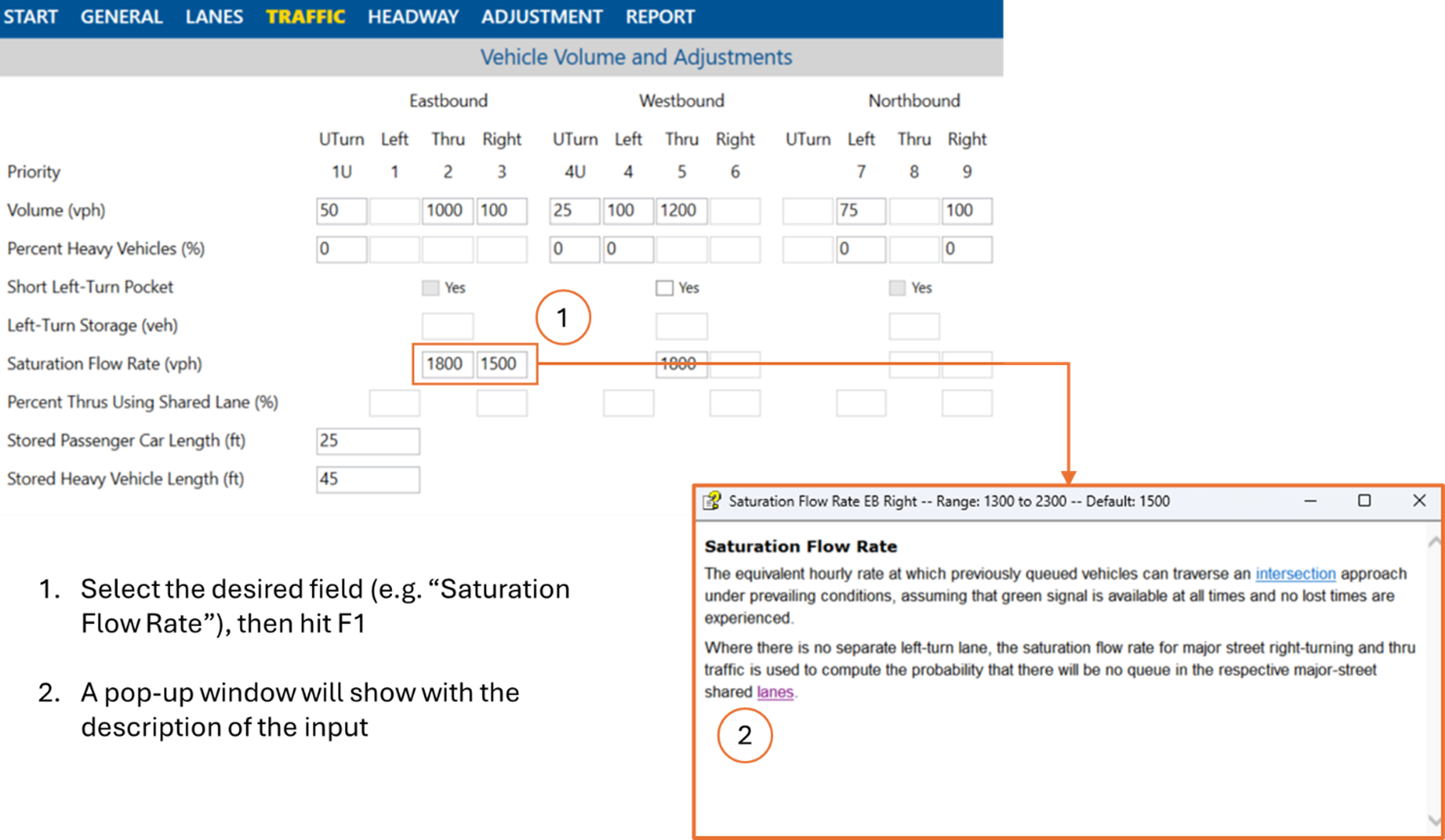
For a quick definition of any user input in HCS/HSS, you can press F1 after selecting or clicking on the respective field, and a pop-up window will provide the definition and additional details. The example below shows how to check the definition of “Saturation Flow Rate” in Two-Way Stop Control analyses, which may not be a frequently used input for stop-controlled intersections:
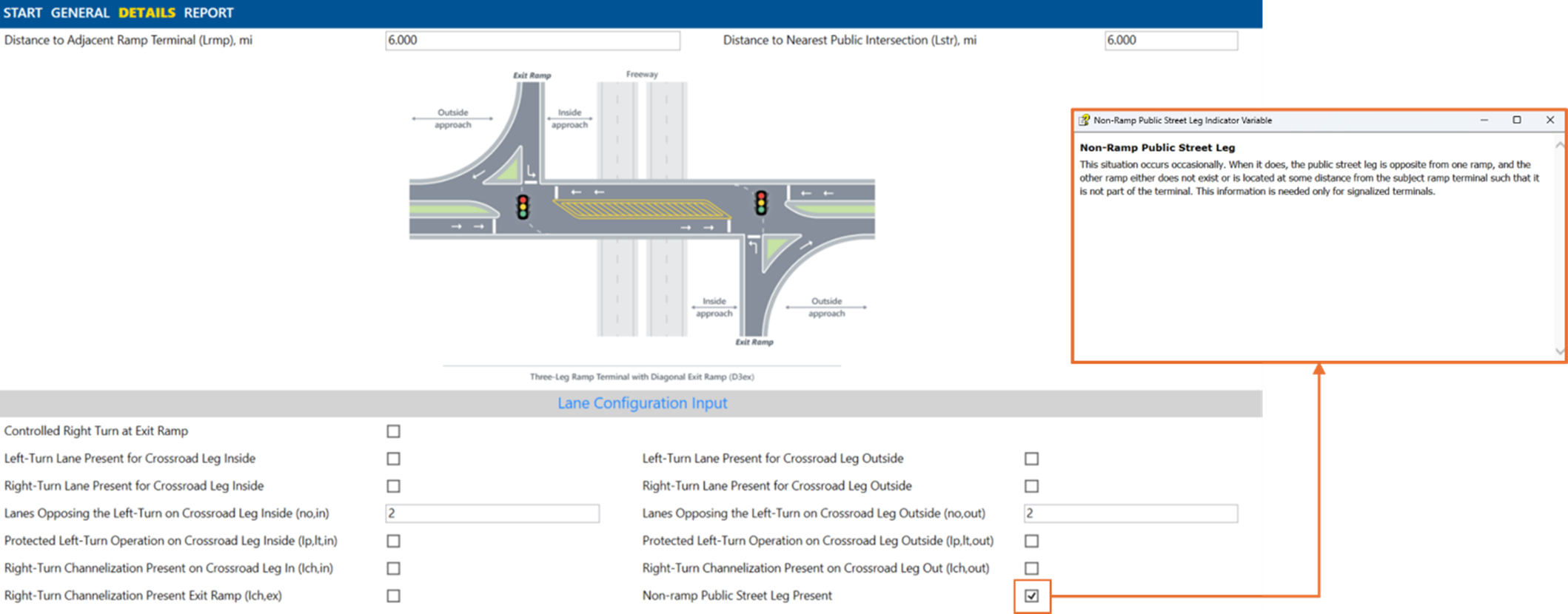
The F1 feature also works for checkboxes and dropdown boxes – similarly, you can hit F1 right after clicking one of these elements. The figure below illustrates the feature applied to a ramp terminal analysis in HSS: